Installation procedure
Python
Python version 3 must be installed to make this application work.
Once you have python installed, I recommend to setup a virtual environment to make this drive-backup working. This will avoid possible conflicts with dependencies from other projects.
To do so, make sure that virtualenv is installed in your computer by running one of the following:
$ virtualenv
$ python -m venv
One of both above will work. After that, create a virtual environment.
For this example we will call it drive-backup:
$ python -m venv drive-backup
Next step is activate this virtual enviroment, by running the
activate or activate.bat command. You will see that
this is achieved because the prompt will change:
$ cd drive-backup
drive-backup$ source ./bin/activate
(drive-backup) drive-backup$
Now we are ready to install the google libraries for authentication and for managing the google api:
(drive-backup) drive-backup$ pip install pyaml
(drive-backup) drive-backup$ pip install --upgrade google-api-python-client
(drive-backup) drive-backup$ pip install google-auth-oauthlib
We are ready for deploy the application
Grab the latest release of the application and uncompress it:
(drive-backup) drive-backup$ unzip google-drive-backup_XXXX.zip
Config many things
logging.json
The entry filename must be configured to indicate where the log files
will be placed:
"filename" : "drive-backup.log",
By default they are left in a file calle google-drive.log, but they
can be left wherever you want. In a linux system, a good place is /var/log/drive-backup.
BTW, you can configure the maximum size of the logging file and the number of log files to keep.
config.json
Create a config.json file by renaming the provided example-config.json:
$ mv example-config.json config.json
And do the necessary configurations:
"emailFrom" : "YOUR GOOGLE EMAIL ACCOUNT HERE",
"emailTo" : ["A LIST OF EMAILS TO NOTIFY, CAN BE LEFT EMPTY"],
runBefore, runAfter
These are placeholders to run additional commands that must be run before the backup is made and after the backup is made. You can leave them empty if you don't have anything to run:
"//2" : "config of directories / files to backup",
"runBefore" : [],
"runAfter" : [],
Or -let's say- you need to run a script to make a full backup of your database. In that case, you can place something like:
"//2" : "config of directories / files to backup",
"runBefore" : [ "/root/full-backup-database.sh" ],
"runAfter" : [ "/root/clean-last-backup.sh" ],
resourcesToBackup
The next step is to properly configure the list of folders or files to make backup:
"resourcesToBackup" : [ "/my_very_important_dir" ],
windows users bear in mind you will have to use backslashes and double backslash:
"resourcesToBackup" : [ "c:\\my_very_important_dir" ],
verifyUploadedFiles
I recommend set this to "true": it will make an MD5 sum of the remote and local files and check that they match.
dailyPolicyFolder, monthlyPolicyFolder, yearlyPolicyFolder
How the folders for daily, monthly and yearly copies be called. You can leave them as is.
drive_backup.sh
You have to configure properly the script drive_backup.sh. Edit it, and
perform the following change:
drive_backup_home="PUT-HERE-THE-HOME-OF-YOUR-APPLICATION"
This is the directory where you have created the virtual environment.
VERY IMPORTANT: give execution permissions to this script by running:
$ chmod u+x drive_backup.sh
drive_backup.cmd
The same changes done for the linux script have to be made for the windows users on this line:
set drive_backup_home=CONFIGURE HERE
And we are ready to run
Now you can run the application like this:
$ ./drive_backup.sh
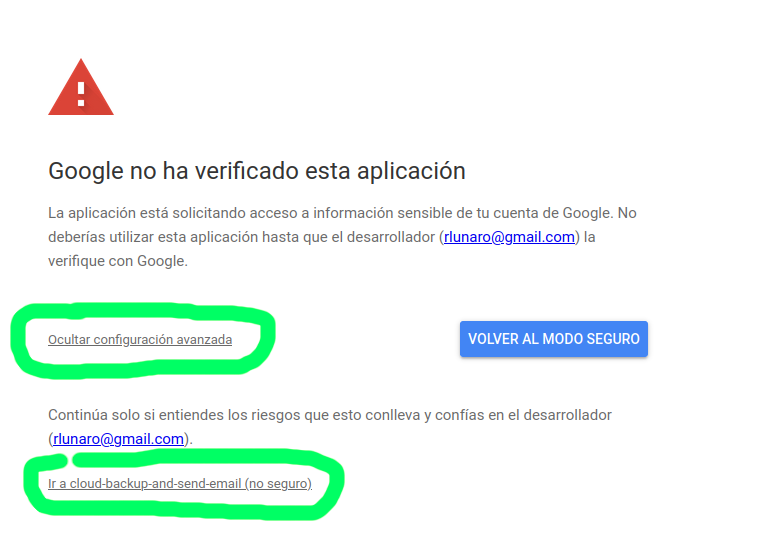
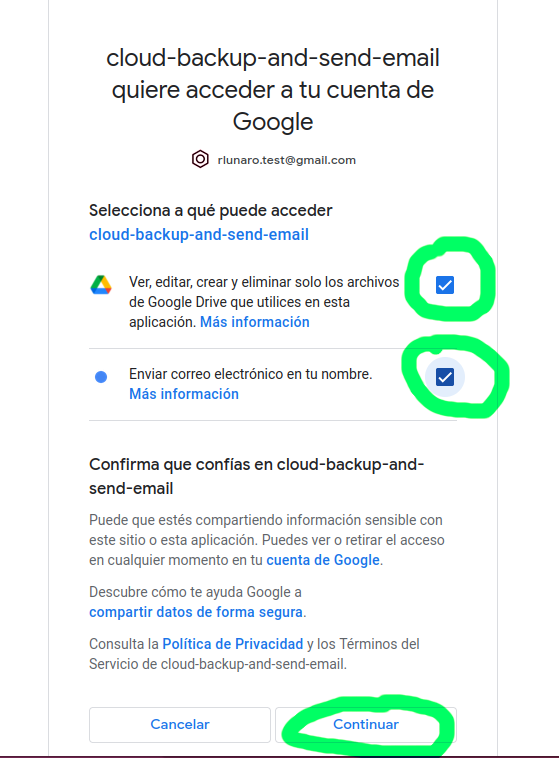
The first time you run the application, it will request for permission to access your google drive and gmail showing a screen like this: